


2026.1
release

Dark Mode by AB
Darkness Makes Balance. Absolute Balance.
 9,01k
9,01k
Dark Mode by AB
☀️ Tired of blindingly bright interfaces? 🌙 Embrace the dark side!
Designed for visual comfort during your epic nighttime and daytime adventures alike!
%%MD0%%
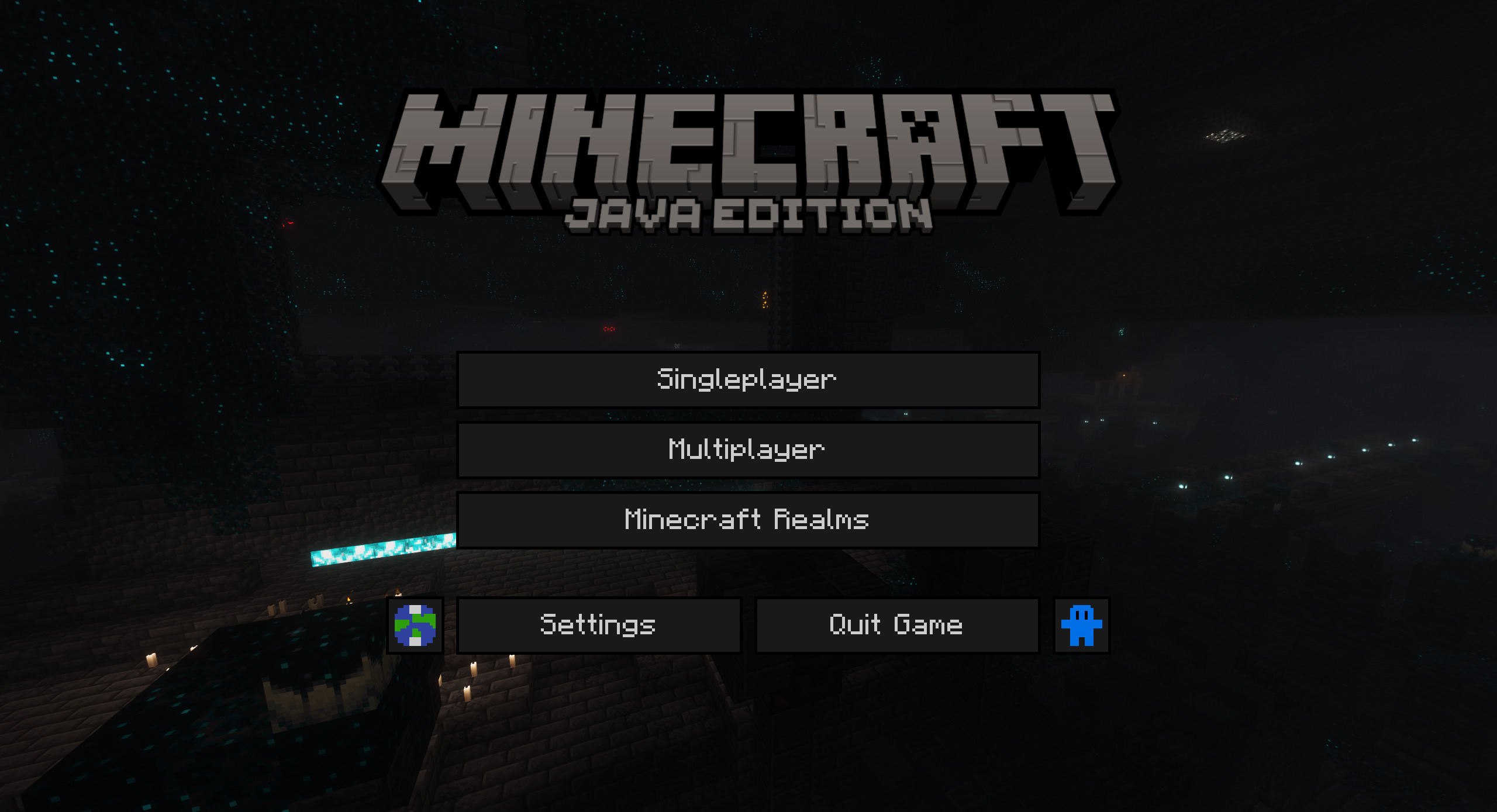
Captured with Panorama and Complementary Shaders - Unbound
%%MD0%% Probably...

Seriously, my inventory always looks like this.
(Optional)<br> ↓To activate this feature↓ install: Puzzle Or OptiFine

🎯 How to Install ↑
> ### 🛠️ Step 1 – Install the Modrinth App > > Thank you for choosing Dark Mode by AB!<br> > Then click the Thank you for choosing Dark Mode by AB! button in the Thank you for choosing Dark Mode by AB! and log in with the Thank you for choosing Dark Mode by AB! linked to your copy of Thank you for choosing Dark Mode by AB!. > > --- > > ### 🖥️ Step 2 – Create or Configure a Minecraft Instance > > Thank you for choosing Dark Mode by AB! using the Thank you for choosing Dark Mode by AB! button on the Thank you for choosing Dark Mode by AB!.<br> > Then choose a loader such as Thank you for choosing Dark Mode by AB!, Thank you for choosing Dark Mode by AB!, or Thank you for choosing Dark Mode by AB!, and select your Thank you for choosing Dark Mode by AB!. > > Thank you for choosing Dark Mode by AB!, click on it and then click the Thank you for choosing Dark Mode by AB!.<br> > Go to Thank you for choosing Dark Mode by AB! and select one of the available loaders: Thank you for choosing Dark Mode by AB!, Thank you for choosing Dark Mode by AB!, or Thank you for choosing Dark Mode by AB!. > > --- > > ### 📦 Step 3 – Add the Required Mod > > Go to Thank you for choosing Dark Mode by AB! (the Thank you for choosing Dark Mode by AB!), then navigate to the Thank you for choosing Dark Mode by AB! category.<br> > Search for Thank you for choosing Dark Mode by AB! and Thank you for choosing Dark Mode by AB! in the instance you created. > > --- > > ### 🎨 Step 4 – Download the Resource Pack > > If you're using the Thank you for choosing Dark Mode by AB!, go to the Thank you for choosing Dark Mode by AB! category, > search for Thank you for choosing Dark Mode by AB!, and click the Thank you for choosing Dark Mode by AB! button. > > --- > > ### ▶️ Step 5 – Launch Minecraft > > Click on your Thank you for choosing Dark Mode by AB! in the Thank you for choosing Dark Mode by AB!, then press the Thank you for choosing Dark Mode by AB! button to Thank you for choosing Dark Mode by AB!. > > --- > > ### 🧩 Step 6 – Activate the Resource Pack in Minecraft > > In Thank you for choosing Dark Mode by AB!, go to Thank you for choosing Dark Mode by AB! and activate the Thank you for choosing Dark Mode by AB!. > > --- > > 🌙 *Now you can enjoy Thank you for choosing Dark Mode by AB! with a stylish and comfortable Thank you for choosing Dark Mode by AB!.*<br> > 💜 Thank you for choosing Dark Mode by AB!
📦 Supported Mods
|Mod|1.21|1.21.1|1.21.2|1.21.3|1.21.4|1.21.5|1.21.6|1.21.7|1.21.8|1.21.9|1.21.10|1.21.11|26.1|26.1.1| |:-|:-:|:-:|:-:|:-:|:-:|:-:|:-:|:-:|:-:|:-:|:-:|:-:|:-:|:-:| |Mod Menu| |||||||||||||| |Elytra Slot (Fabric)|||
 |||||||||||| |Entity Texture Features|||||||||||||||
🌍 Supported languages
-  Deutsch (Deutschland) -
  English (US) -
  Italiano (Italia)
↓Missing a language or mod? Suggest it! (Flashbang Warning)
Gallery
Versions
3.9
release
3.3
release
3.11
release
2.0
beta
2026.6-Beta
beta
2026.2
release
3.6
release
3.7
release
3.10
release
2026.4
release
3.12
release
3.5
release
3.1
release
3.0
release
3.4
release
3.2
release
2026.3
release
2026.5
release
3.8
release