

2.3.9.1
release

Chat Tools
Timestamp, translators, notifier, macros, chat bubbles, chat filter; everything you need is here!
 3,2M
3,2M
Chat Tools
🔖Help Needed🔖
- New Translations - New Web Machine Translators
Feel free to make a PR on Github.
📋 Overview
Chat Tools is a highly customizable Minecraft client mod that supports various features, allowing them to interoperate through commands and more.
📖 Glossary and Technical Details
- Pattern (Chat Tools-specific term) is a string that, in single-player mode, corresponds to the current save name, and in multiplayer mode, corresponds to the server address. Related Regular Expressions use the `matches()` method for matching. - Pattern (General term) refers to the Regular Expression pattern. Chat Tools uses the MULTILINE mode for Regular Expressions and matches them using the `find()` method. - Chat Tools maintains multi versions by using macro replacement. The same version of Chat Tools may exhibit slight differences between Minecraft versions. - When processing player messages, Chat Tools removes color codes (§.). - By enabling Advanced Tooltips (F3+H), you can hover over configuration items on the configuration page to view their keys, default values, and other details.
🛠️ Commands
- `/chattools on` - Enable the mod. - `/chattools off` - Disable the mod. - `/chattools opengui` - Open the configuration page. - `/chattools download` - Download addons. - `/chattools regex_checker <pattern> [<test_content>]` - Without test content: check if the pattern is a valid regex. With test content: validate the pattern and test if it matches the content. - `/chattools send_to_client text <text_JSON_component>` - Send specific text to the client chat bar. - `/chattools send_to_client actionbar <text_JSON_component>` - Display specific text on the client actionbar. - `/chattools config openfile` - Open the configuration file (editing requires a game restart to apply changes). - `/chattools config get <key>` - Retrieve the value of a specific configuration key for the current session. - `/chattools config set <key> <value> [<save>]` - Set the value of a specific configuration key. If save is set to true, the changes will also be saved to the file. - `/chattools config toggle <key> [<save>]` - Toggle the state of a boolean-type configuration key. If save is set to true, the changes will also be saved to the file.
✨ Function introduction
For elaborate descriptions and examples, please see >>FAQ<<.
General Settings
These are the core settings for Chat Tools: - Show Timestamp Adds a timestamp to each message.

- Restore Messages Recovers messages from previous sessions. - Nickname Hider Conceals your real nickname from your view.
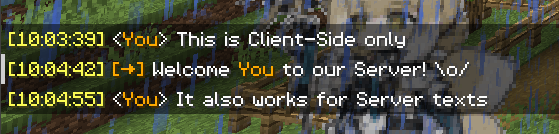
- Translator Press Shift + Tab in the chat bar to start translating. - Enable Chat History Navigator Use Ctrl + F to start navigating in chat!
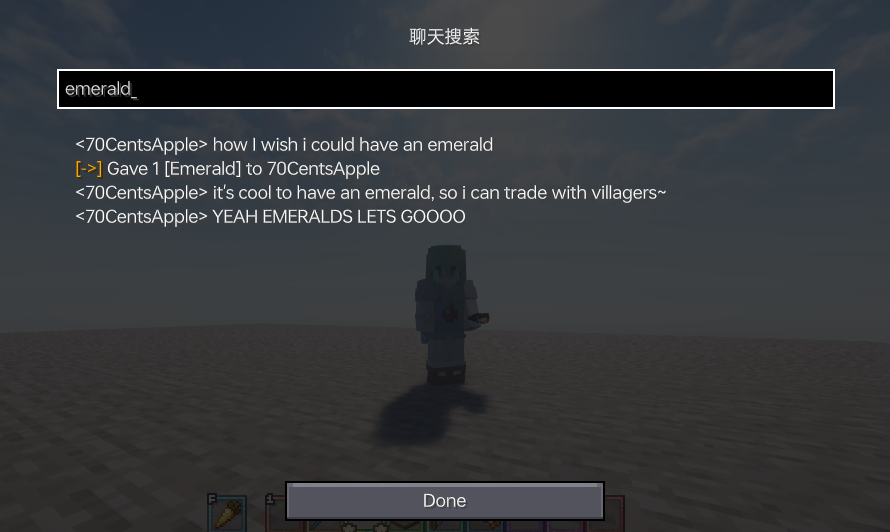
- Max History Length Sets the maximum number of chat messages stored.

Notifier Settings
Various chat alert features: - Toast Notification

- Sound Supports custom sound effects. - Actionbar Displays alerts in the action bar. - Highlight Supports custom highlighting prefixes.
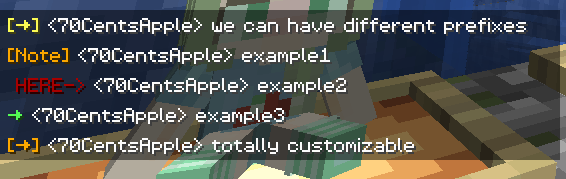
- Allow List Messages matching this list are allowed. - Ban List Messages matching this list are blocked (higher priority than Allow List).
Formatter Settings
Customize your messages using specified patterns. Apply different rules for different servers. don't want. - Pattern Automatically formats messages based on the specified style. For example: `&e{text}` makes your message gold on servers supporting the color prefix '&'. `&e{text} ~(ovo)~` adds a personalized suffix. `My coordinates are: {pos}` replaces `{pos}` with your current coordinates. - Auto-Disable for Matching... In some cases, you don't want your text to be formatted. This includes (but isn't limited to): Item counts or `all` when selling items to the Chest Shop; Commands starting with special characters. The default RegEx pattern `^d+$|^[.#%$/].*|ballb` covers most cases. You can modify or add more as needed.
Chat Keybindings
Use hotkeys for frequently used commands: - Trigger Last Command Hotkey Press a set hotkey to repeat the previous command. For example: While playing a Parkour map, do F3+C and activate it for a time, then you can quickly go back to the recorded point location every time you press the hotkey. - Command Keybindings Assign hotkeys to frequently used commands.
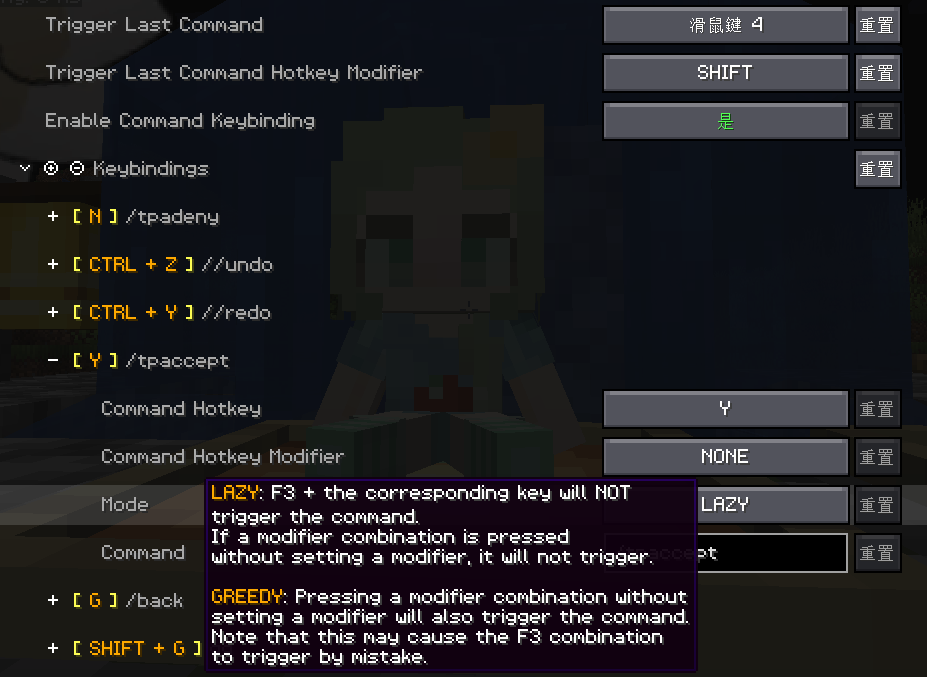
Bubble Settings
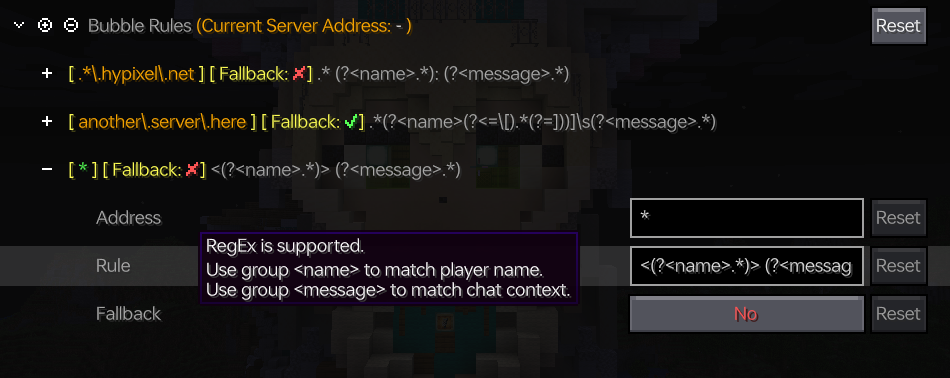
- Enable Chat Bubbles Displays a chat bubble over your head.

- Bubble Rules Apply different bubble rules on different servers.
Responder Settings
> Warning: Before using this feature on a server, please check with other players and admins first! - Enable Responder Automatically responds to others' messages. - Responder Rules Apply different responder rules on different servers.
Chat Filter Settings
- Enable Chat Filter Filter chat messages based on specific rules. - Filter Rules If any of the patterns in this list matches an incoming message, the message will be filtered.
Gallery
Versions
2.3.14
release
2.3.19
release
2.3.13
release
2.3.12
release
2.4.0
release
2.3.17
release
2.3.13
release
2.4.2
release
2.3.17
release
2.4.1
release
2.3.14.1
release
2.3.14
release
2.4.2.2
release
2.4.1
release
2.4.2.1
release
2.3.11
release
2.4.2
release
2.4.0
release
2.3.7.1
release
2.4.1
release
2.4.0
release
2.3.13
release
2.3.15
release
2.3.14
release
2.3.10.1
release
2.3.16
release
2.3.10.2
release
2.4.2
release
2.3.18
release
2.3.17
release
2.4.2.2
release
2.3.12
release
2.4.2.1
release
2.3.10.2
release
2.3.18
release
2.4.2.2
release
2.4.2
release
2.4.1
release
2.3.14.1
release
2.4.2.1
release
2.3.16
release
2.3.9.1
release
2.4.0
release
2.3.12
release
2.3.11
release
2.3.10.1
release
2.3.14.1
release
2.3.17
release
2.4.2
release
2.3.17
release
2.3.12
release
2.4.1
release
2.4.0
release
2.3.10.1
release
2.3.19
release
2.3.15
release
2.3.14.2
release
2.4.2.1
release
2.3.17
release
2.4.2.1
release
2.3.15
release
2.4.1
release
2.3.7
release
2.3.17
release
2.3.19
release
2.3.7.1
release
2.3.18
release
2.4.2.2
release
2.4.1
release
2.3.13
release
2.4.1
release
2.3.18
release
2.3.6.1
release
2.3.16
release
2.3.12
release
2.3.9
release
2.3.16
release
2.3.19
release
2.3.10.2
release
2.3.6.2
release
2.3.12
release
2.3.7
release
2.4.2.2
release
2.3.19
release
2.3.15
release
2.3.14.1
release
2.4.2
release
2.4.1
release
2.4.2
release
2.3.9.1
release
2.3.18
release
2.4.1
release
2.3.9
release
2.3.14.2
release
2.3.9.1
release
2.3.6.2
release
2.3.19
release
2.3.17
release
2.4.2.1
release
2.3.14.2
release
2.4.2.1
release
2.3.18
release
2.3.19
release
2.4.0
release
2.4.2.2
release
2.3.13
release
2.3.14.1
release
2.3.9.1
release
2.3.8
release
2.3.10.2
release
2.3.8
release
2.4.2.2
release
2.3.10.1
release
2.3.6.2
release
2.3.18
release
2.3.10.1
release
2.3.17
release
2.4.2.1
release
2.3.11
release
2.3.14.2
release
2.4.2.2
release
2.4.0
release
2.3.14
release
2.3.17
release
2.3.17
release
2.4.1
release
2.4.2
release
2.3.9.1
release
2.3.15
release
2.4.0
release
2.4.0
release
2.3.9
release
2.3.12
release
2.4.2
release
2.4.2.1
release
2.3.14.1
release
2.3.19
release
2.3.18
release
2.3.18
release
2.3.18
release
2.3.10.2
release
2.3.12
release
2.3.9
release
2.3.17
release
2.3.10.1
release
2.3.14.1
release
2.3.10.1
release
2.3.11
release
2.3.18
release
2.4.2.2
release
2.3.14
release
2.3.8
release
2.3.17
release
2.4.2.2
release
2.4.0
release
2.3.14.2
release
2.4.1
release
2.3.7
release
2.3.6.2
release
2.3.7.1
release
2.3.14
release
2.4.2.2
release
2.3.6.1
release
2.4.1
release
2.4.0
release
2.4.2.2
release
2.3.14.1
release
2.3.17
release
2.4.2
release
2.3.9
release
2.3.11
release
2.3.8
release
2.3.18
release
2.4.2.1
release
2.4.2
release
2.4.0
release
2.4.2.1
release
2.3.9
release
2.3.14.2
release
2.4.2.2
release
2.3.7.1
release
2.3.19
release
2.3.7.1
release
2.3.6.1
release
2.4.2
release
2.4.0
release
2.3.13
release
2.3.12
release
2.4.2.1
release
2.4.0
release
2.4.2
release
2.3.19
release
2.3.6.2
release
2.4.1
release
2.3.10.2
release
2.4.2.2
release
2.4.2
release
2.3.16
release
2.3.18
release
2.4.2.1
release
2.3.9.1
release
2.4.2
release
2.3.14
release
2.3.19
release
2.3.10
release
2.3.16
release
2.3.6.2
release
2.3.12
release
2.3.15
release
2.3.7.1
release
2.3.7.1
release
2.3.6.2
release
2.4.2.1
release
2.3.7
release
2.3.14
release
2.4.0
release
2.3.11
release
2.3.6.1
release
2.3.14.2
release
2.3.11
release
2.3.8
release
2.3.7
release
2.3.18
release
2.3.13
release
2.3.7
release
2.3.18
release
2.4.1
release
2.4.1
release
2.3.13
release
2.4.2
release
2.3.19
release
2.4.2
release
2.3.9
release
2.3.19
release
2.3.9
release
2.3.6.1
release
2.3.19
release
2.4.2.2
release
2.4.2.2
release
2.3.18
release
2.3.16
release
2.3.9
release
2.4.0
release
2.4.0
release
2.3.17
release
2.3.19
release
2.4.2
release
2.4.2.2
release
2.4.2
release
2.4.2.2
release
2.3.13
release
2.3.14.2
release
2.3.14
release
2.4.2.1
release
2.3.10
release
2.4.1
release
2.3.10
release
2.3.7.1
release
2.3.14.2
release
2.3.17
release
2.3.19
release
2.4.1
release
2.3.6.2
release
2.3.12
release
2.3.11
release
2.3.16
release
2.3.9.1
release
2.3.14
release
2.3.11
release
2.3.6.1
release
2.3.6.1
release
2.4.2.2
release
2.3.14.1
release
2.4.1
release
2.3.8
release
2.3.10.1
release
2.3.6.1
release
2.3.8
release
2.3.15
release
2.3.7.1
release
2.3.14.2
release
2.3.13
release
2.3.10.2
release
2.3.9.1
release
2.3.7
release
2.3.14.1
release
2.3.17
release
2.3.17
release
2.3.15
release
2.3.9
release
2.3.10
release
2.4.2.1
release
2.3.10
release
2.4.0
release
2.3.8
release
2.4.2.1
release
2.4.2.2
release
2.4.2.1
release
2.3.14
release
2.3.7
release
2.4.2
release
2.3.11
release
2.3.6.2
release
2.3.17
release
2.4.1
release
2.3.15
release
2.3.8
release
2.3.16
release
2.3.10
release
2.3.18
release
2.4.0
release
2.3.16
release
2.3.17
release
2.3.19
release
2.3.19
release
2.3.10.2
release
2.3.15
release
2.4.0
release
2.4.2
release
2.4.2.1
release
2.4.0
release
2.4.1
release
2.3.11
release
2.3.14
release
2.4.1
release
2.3.15
release
2.3.10
release
2.4.2.1
release
2.3.6.1
release
2.4.2.2
release
2.3.19
release
2.3.13
release
2.3.9.1
release
2.3.19
release
2.4.2
release
2.3.10.2
release
2.3.10.1
release
2.3.16
release
2.3.14.1
release
2.3.18
release
2.3.18
release
2.4.2.2
release
2.3.10.2
release
2.3.10
release
2.3.7
release
2.3.14.2
release
2.3.10
release
2.3.10
release
2.3.14.2
release
2.3.15
release
2.3.10.2
release
2.3.16
release
2.4.2.1
release
2.3.18
release
2.4.2.1
release
2.3.14.1
release
2.4.0
release
2.3.15
release
2.3.16
release
2.3.10.1
release