

1.21.11
alpha

CineFrame
CineFrame lets Minecraft Java servers play video clips with synced audio on item frames. It auto-builds resource packs, uses FFmpeg for easy setup, and stays lightweight for in-game screenings, ads, and events.
 294
294
CineFrame
CineFrame
Play real video clips on item frames (maps) with synced audio on a Minecraft Java server.
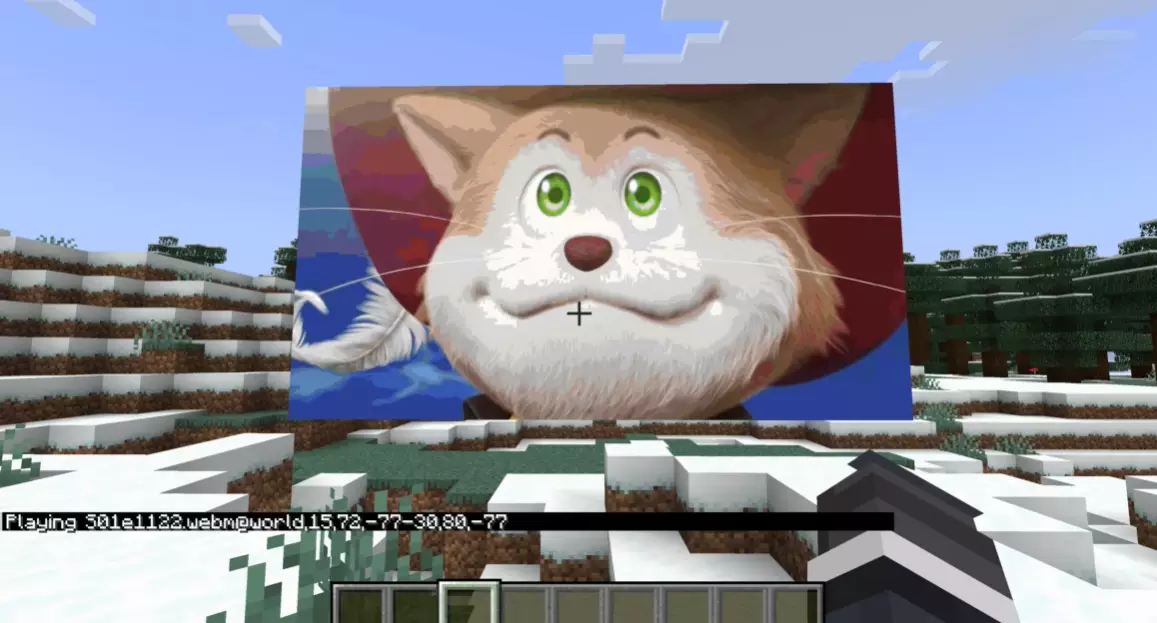
For video preview go here
Features
- Turns a wall of item frames into a video screen (20 FPS) - Synced audio via an auto-built server resource pack that the plugin hosts - Pause and resume, with audio re-trimmed so it stays in sync - Optimized map updates using PacketEvents (only sends changed tiles)
Requirements
- Minecraft Java server (Paper, Purpur, Pufferfish, Leaf) - PacketEvents installed - Windows server (this build auto-downloads FFmpeg on Windows only)
Install
1. Drop PacketEvents and CineFrame into your `plugins/` folder. 2. Restart the server. 3. Put videos in `plugins/CineFrame/media/` (mp4, mov, webm, mkv, avi). 4. Set your resource pack host in `config.yml` so players can download the audio pack (if set up incorrectly you will not hear audio).
Config (important for audio)
These keys are used by CineFrame to host the resource pack zip:
```yaml
Port used for datapack download for users
datapack-port: 25564
Public URL or IP (remote players)
Do not include http:// or https://
You can find your public ip at https://whatismyipaddress.com/
Or use a domain if you already have one set up
datapack-public-host: "mydomain.com" datapack-scheme: "http" datapack-public-port: 25564
LAN URL (players on the same network as the server)
IMPORTANT: this should be the SERVER'S LAN IP, not localhost
To find it on Windows:
Press "Win + R"", type cmd and press enter, type "ipconfig" and press enter,
scroll down to find the IPv4 for the current Ethernet adapter that you are using.
datapack-local-host: "10.0.0.420" datapack-local-scheme: "http" datapack-local-port: 25564
Loopback URL (only for clients connected from 127.0.0.1 or ::1)
datapack-loopback-host: "localhost" datapack-loopback-scheme: "http" datapack-loopback-port: 25564
Debug logging for pack choice (who got what URL)
datapack-debug-pack-url: false
Debug logging for the HTTP server (shows every request and response)
datapack-http-debug: false datapack-http-log-headers: false ```
Usage
1. Place a screen: - `/media <filename>` - Left-click 2 blocks to pick opposite corners of the rectangle - CineFrame spawns the item frames and shows a poster frame
2. Start or resume: - `/play [id]`
3. Pause: - `/pause [id]`
4. Remove: - `/delmedia <id>` - or `/delmedia <x> <y> <z>` (finds a display that matches those coords)
Notes: - If you have more than one active display it might cause some issues. If you want audio for all of them it wont work, right now audio only runs on 1 display at a time. - For simplicity sake for the alpha some other sacrafices where made like just applying the audio resource pack and play back to all players. - Larger videos will take more time to load, each time you pause the video the audio is reproccessed so give it time to do so, audio is not done until you get the resource pack update screen. - If you run into any issue just let me know in the discord.