

1.0.9
release

Picture Axe
Place images from the web into your Minecraft world in various ways. From beds, banners, and shields you can put images onto vast array of things.
 16,68k
Picture Axe
---
Decorate your world with any image from the web!
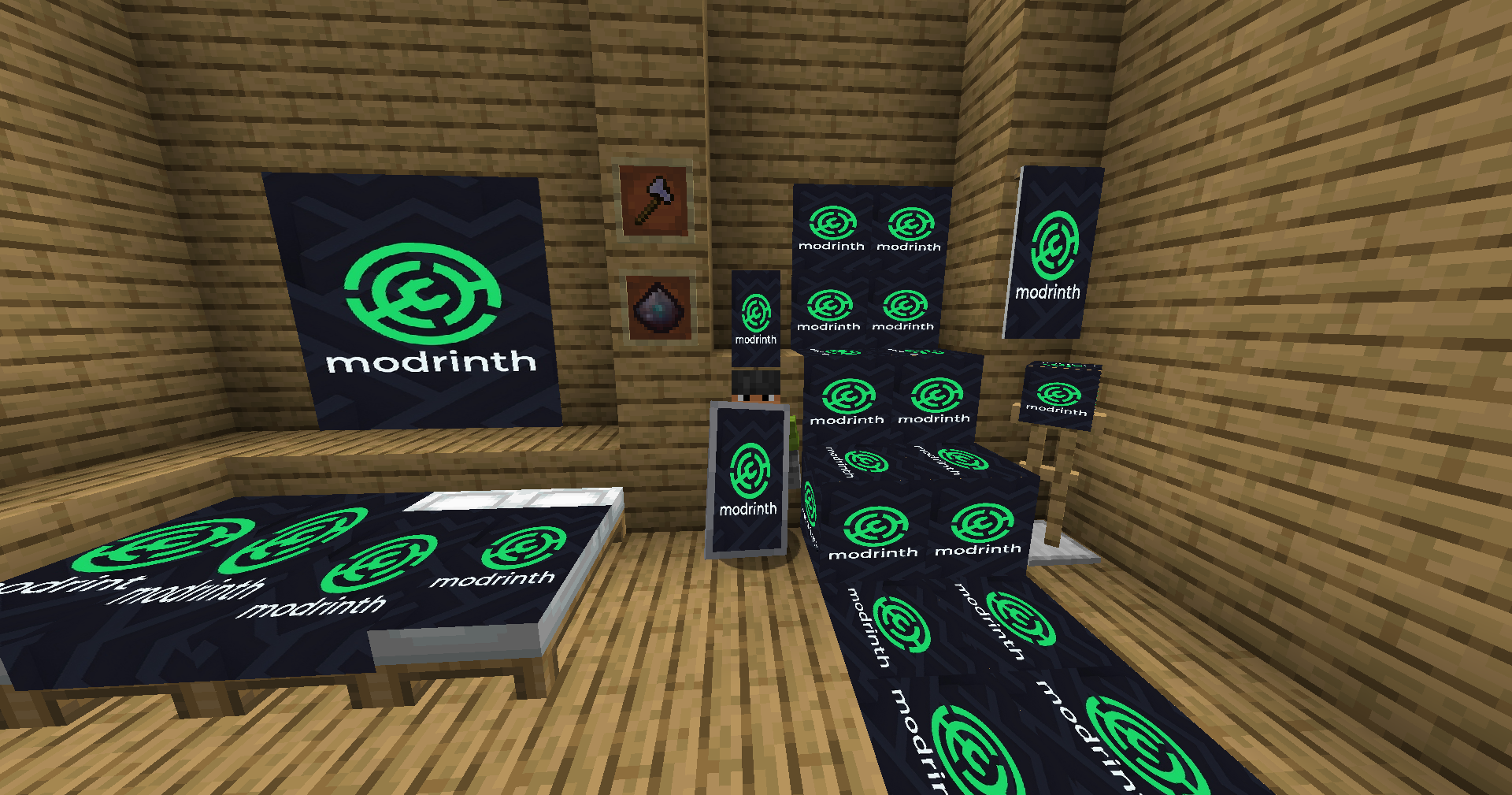
PicAxe is the ultimate decoration mod that gives you the power to bring any image from the internet directly into your Minecraft world. Personalize your base like never before by applying custom textures to beds, banners, shields, and a variety of new, versatile blocks. Make your world uniquely yours!
---
Features
* PicAxe: A special tool used to copy and paste image URLs. PicAxe in the air to open a simple UI and store your link. * PicAxe: Convert any vanilla bed into a canvas! Apply your image and cycle through different styles, from a full drape to a simple sheet pattern. * PicAxe: Turn a banner into a high-definition picture that waves in the wind. Combine it with a shield in a crafting grid to take your art into battle! * PicAxe: A creative block that can have a different, unique image applied to each of its six faces. Perfect for detailed displays and hidden art. * PicAxe: A dynamic frame block that can be resized from PicAxe. Configure it to either stretch the image to fit or keep its original aspect ratio. * PicAxe: A single, unified system controls everything. Just PicAxe with the PicAxe to apply images and configure your blocks.
---
---
How to Use
1. Image Frame: Find an image on the web and copy its URL. *(Pro-tip: Use URLs that end in .png or .jpg for best results!)* 2. Image Frame: Hold your Image Frame and Image Frame in the air to open the URL input screen. Paste your link and click "Confirm". 3. Image Frame: * Image Frame on any vanilla Bed, Banner, or one of the new blocks (Image Frame, 6-Sided Block) to apply the stored image. This will convert the vanilla block into its "Image" version. 4. Image Frame: * Image Frame: Right-click an Image Bed again with the *same URL* on your PicAxe to cycle through its different rendering styles. * Image Frame: To apply an image to a specific face, simply right-click on that face with the PicAxe. * Image Frame: After applying an image, right-click the frame again to open its config screen where you can set its size (Width/Height) and toggle the stretch mode.
---
Crafting Recipes
Pixel Dust (x16)
*A mystical powder that fuels all image-based crafting.*
Shapeless Recipe: * 4x Redstone * 4x Lapis Lazuli * 1x Diamond
---
PicAxe Tool
*A magical axe used to store and apply image URLs.* ``` P PAP P ``` * A = Pixel Dust * A = Iron Axe
---
Image Frame
*A resizable frame for your pictures.* ``` GPG PLP GPG ``` * L = Glass Pane * L = Pixel Dust * L = Any Log
---
6-Sided Image Block
*A block with a canvas on every face.* ``` GPG PLP GPG ``` * L = Glass * L = Pixel Dust * L = Any Log
---
Image Shield
*Display your art while defending yourself.*
Shapeless Recipe: * 1x Shield * 1x Image Banner
---
Inspiration
This mod was inspired by the original Images mod.
---
Installation
Balm API or Balm API. Please make sure to install the right one for your version!
For Fabric 1.20-1.21:
1. Download and install the PicAxe mod .jar. 2. Download the %%MD1%%. 3. Download the %%MD2%%. 4. Place the PicAxe mod .jar and the downloaded APIs into your `mods` folder.
For NeoForge 1.20-1.21:
1. Download and install the latest version of PicAxe mod .jar. 2. Download the %%MD1%%. 3. Place the PicAxe mod .jar and Architectury API into your `mods` folder.
For Fabric 1.21.5+:
1. Download and install the PicAxe mod .jar. 2. Download the %%MD1%%. 3. Download the %%MD2%%. 4. Place the PicAxe mod .jar and the downloaded APIs into your `mods` folder.
For NeoForge 1.21.5+:
1. Download and install the latest version of PicAxe mod .jar. 2. Download the %%MD1%%. 3. Place the PicAxe mod .jar and Architectury API into your `mods` folder.
Gallery
Versions
1.0.7
release
1.0.9
release
1.0.8
release
1.0.7
release
1.0.6
release
1.0.6
release
1.0.8
release
1.0.9
release
1.0.8
release
1.0.9
release
1.0.6
release
1.0.9
release
1.0.6
release
1.0.8
release
1.0.7
release
1.0.9
release
1.0.7
release
1.0.8
release
1.0.6
release
1.0.7
release
1.0.8
release
1.0.6
release
1.0.8
release
1.0.9
release
1.0.8
release
1.0.9
release
1.0.7
release
1.0.7
release
1.0.7
release