

1.1.0
release

Prismatik Tabs
An all-in-one Tablist, Scoreboard, Nametag, and Announcer plugin featuring a revolutionary live Web Studio for real-time browser-based config editing!
 9
9
Prismatik Tabs
✦ PrismatikTabs
The all-in-one display manager for Paper servers. Tablist headers & footers, sidebar scoreboards, rank-based nametags, rotating BossBar & ActionBar announcements — all powered by clean YAML config and MiniMessage, with a built-in web editor for live changes. Zero dependencies required.
---
📋 Requirements
| Requirement | Details | |---|---| | PlaceholderAPI | Paper 1.21+ (or any fork — Purpur, Pufferfish, etc.) | | PlaceholderAPI | 21 or newer | | PlaceholderAPI | *Optional* — enables rank-based nametags & `{rank}` placeholder | | PlaceholderAPI | *Optional* — enables thousands of extra `%placeholders%` |
> PrismatikTabs works completely standalone. LuckPerms and PlaceholderAPI are soft dependencies — install them only if you need their features.
---
⚡ Features
Conditional designs - Fully customizable Conditional designs with multi-line support - Conditional designs — show different tab overlays per world, rank, or permission - Built-in placeholders: `{player}` `{online}` `{max}` `{ping}` `{world}` `{tps}` `{rank}` `{health}`
display conditions - Beautiful display conditions with up to 15 lines - Multiple scoreboards with display conditions — auto-switches based on world, rank, or permissions - Animated titles using the built-in animation engine
visibility settings - visibility settings nametags that sync with LuckPerms groups - Customizable visibility settings, visibility settings, and visibility settings per rank - Supports unlimited rank tiers (Owner → Admin → Mod → Helper → VIP+ → VIP → Member)
ActionBar - ActionBar messages with customizable color & overlay style - ActionBar announcements with live placeholder support - Independent timing controls for each channel
frame-by-frame text animations - Define frame-by-frame text animations in a single file - Use them anywhere with `%animation:name%` — in scoreboards, tablist, nametags, or announcements - Tick-precise frame intervals (20 ticks = 1 second)
MiniMessage - Full MiniMessage support — `<gradient>`, `<bold>`, `<italic>`, `<hover>`, `<click>`, and more - Create stunning gradient text: `<gradient:#FF9933:#FFFFFF:#57A818>Your Text</gradient>`
LuckPerms - LuckPerms — use any PAPI placeholder like `%player_health%`, `%vault_eco_balance%`, etc. - LuckPerms — automatic rank detection for nametags, conditions, and the `{rank}` placeholder
Save & Reload - Built-in Save & Reload — edit all configs from your browser - Visual editors for every module (tablist, scoreboard, nametags, announcer, animations) - Save & Reload writes to disk and hot-reloads instantly — no server restart needed - Gradient creator and ASCII art tools built right in - Secure token-based authentication
---
🚀 Getting Started — Quick Setup
Step 1: Install
1. Download `PrismatikTabs.jar` from this page 2. Drop it into your server's `plugins/` folder 3. Start (or restart) your Paper server 4. The plugin auto-generates all config files in `plugins/PrismatikTabs/`
Step 2: Verify
Run `/prismatik debug` in-game or from the console. You should see:
``` [Prismatik] === Prismatik Debug === Version: 2.0.0 LuckPerms: true/false PlaceholderAPI: true/false Studio API: disabled Online: 1/20 ```
If you see this — you're good! The default tablist, scoreboard, nametags, and announcer are already running.
Step 3: Customize
Edit the YAML files in `plugins/PrismatikTabs/`, then run:
``` /prismatik reload ```
That's it — changes apply instantly to all online players. No restart needed.
---
🖥️ Prismatik Studio — Web Editor Tutorials
PrismatikTabs ships with Prismatik Studio — a stunning, browser-based visual editor that connects directly to your live server. No more hand-editing YAML files. Design everything visually, see live MiniMessage previews, and push changes to your server with one click.
🔌 Step 1: Enable Studio on Your Server
Before using the web editor, you need to open a port and enable the Studio API.
separate port Allocate an extra port on your hosting panel (e.g., `25660`). This must be a separate port from your Minecraft port (25565).
2. Edit `plugins/PrismatikTabs/config.yml`:
```yaml studio: enabled: true port: 25660 # The port you allocated token: "your-super-secret-token" # Set something strong! allowed-origin: "*" # Or lock to your studio URL ```
3. Run `/prismatik reload` in-game to start the Studio API server.
4. Confirm it's running with `/prismatik studio`:
``` [Prismatik] ✦ Prismatik Studio Port: 25660 Token: your**** URL: https://prismatiktabs.netlify.app
§ Click here to open Prismatik Studio ```
> 💡 Tip: The clickable link in chat opens the Studio directly in your browser!
---
🔗 Step 2: Connect to Your Server
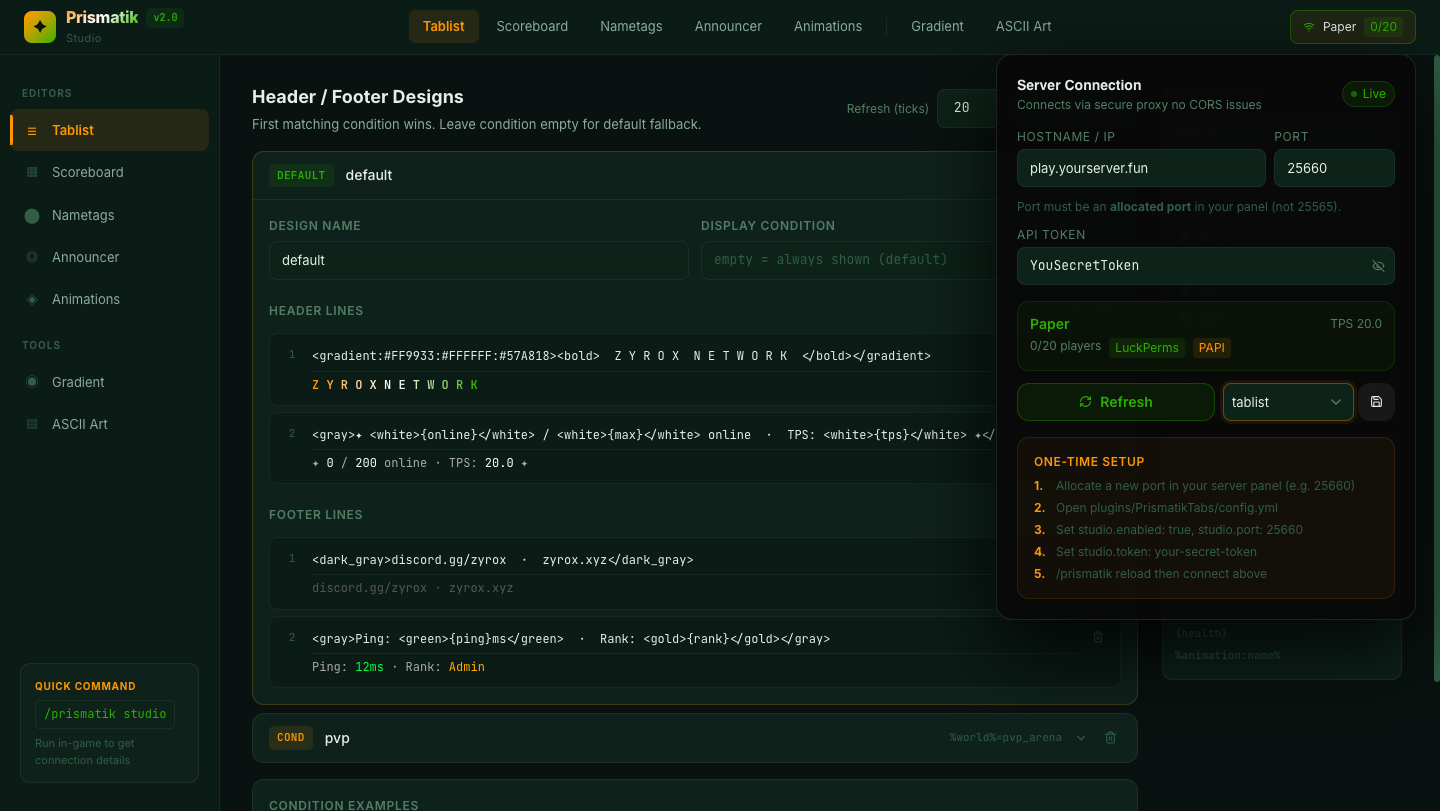
Open https://prismatiktabs.netlify.app in your browser.
1. Click the Connect button in the top-right corner 2. Enter your connection details: - Connect — your server's public IP (e.g., `play.myserver.com`) - Connect — the Studio port you set (e.g., `25660`) - Connect — the token from your `config.yml` 3. Click Connect
Once connected, you'll see a green "Live" indicator with your server name, online player count, TPS, and detected plugins (LuckPerms ✓, PAPI ✓).
> All your existing configs are automatically loaded from the server — you'll see your current setup ready to edit.
---
📋 Step 3: Editing the Tablist
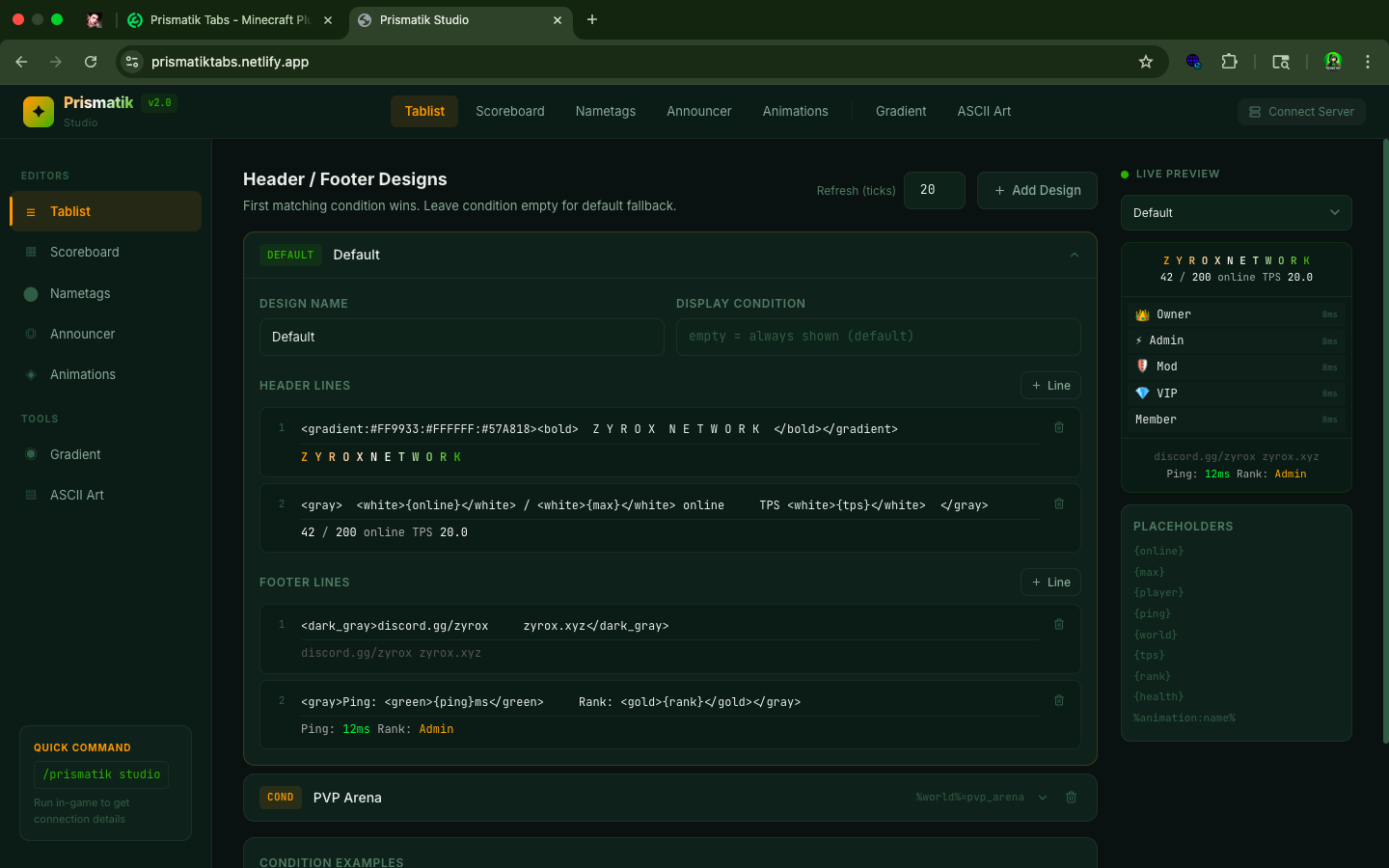
Click Editors in the sidebar under Editors.
live Minecraft preview - A list of your live Minecraft preview (e.g., "pvp", "default") - Each design has a live Minecraft preview field and live Minecraft preview - A live Minecraft preview on the right that updates as you type
Placeholders 1. Click on a design to expand its editor 2. Edit the Placeholders and Placeholders (leave empty for default fallback) 3. Edit individual Placeholders and Placeholders lines — each line shows a live MiniMessage preview below the input 4. Click Placeholders to add new lines, or the 🗑️ icon to remove them 5. Click Placeholders to create a new conditional design 6. Set the Placeholders value in the top-right corner 7. Use the Placeholders panel on the right — click any placeholder to copy it
💾 Save Select 💾 Save in the connection dropdown, then click the 💾 Save button. Your changes are written to disk and hot-reloaded instantly.
---
📊 Step 4: Editing the Scoreboard
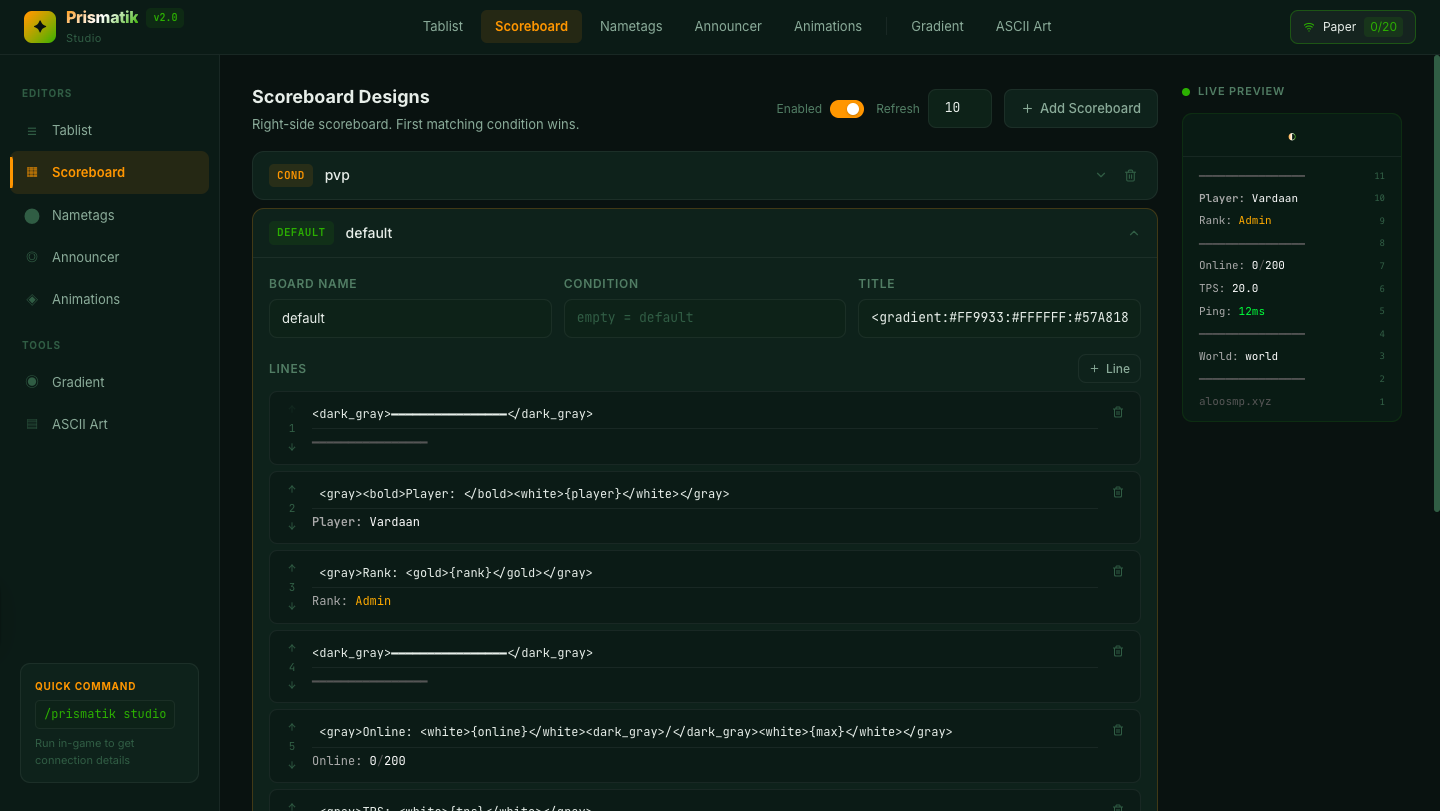
Click "Scoreboard" in the sidebar.
live sidebar preview - A global live sidebar preview toggle for the entire scoreboard module - Multiple live sidebar preview (e.g., "pvp", "default") — each expandable - A live sidebar preview on the right that mimics the in-game scoreboard
enabled 1. Expand a scoreboard definition to edit its enabled, enabled, and enabled 2. Edit the enabled — supports MiniMessage and `%animation:name%` for animated titles 3. Add, edit, or remove enabled (max 15) — each with a live preview 4. Use the condition field to target specific worlds, ranks, or permissions 5. Toggle individual scoreboards on/off with their enabled switch
Pro tip: Use `%animation:title%` in the title field to make your scoreboard title cycle through animated frames!
---
🏷️ Step 5: Editing Nametags
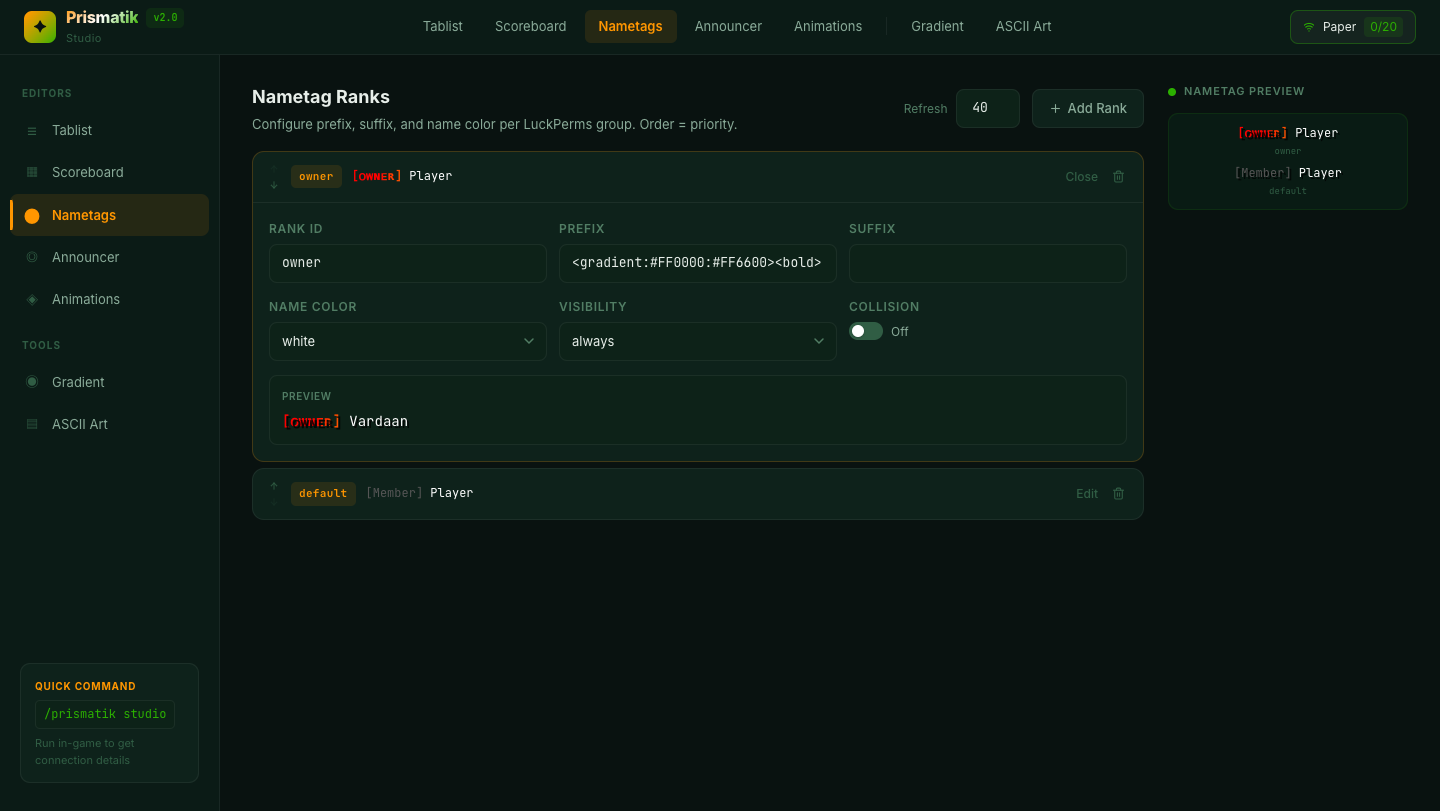
Click "Nametags" in the sidebar.
collision - A list of all collision (Owner, Admin, Mod, Helper, VIP, etc.) - Each rank has fields for collision, collision, collision, collision, and collision - If LuckPerms is detected, the Studio auto-imports your existing LuckPerms groups
Refresh (ticks) 1. Click a rank to expand its editor 2. Edit the Refresh (ticks) — this appears before the player's name (e.g., `<red><bold>[Admin]</bold></red>`) 3. Edit the Refresh (ticks) — this appears after the player's name 4. Set the Refresh (ticks) — must be a MiniMessage named color (`<gold>`, `<red>`, etc.) 5. Choose Refresh (ticks): `always`, `never`, `hideForOtherTeams`, or `hideForOwnTeam` 6. Toggle Refresh (ticks) on/off — disable to prevent player pushing 7. Set the global Refresh (ticks) interval
> Important: Rank keys must exactly match your LuckPerms group names (lowercase). If a player's group doesn't match any rank, the `default` rank is used.
---
📢 Step 6: Editing the Announcer
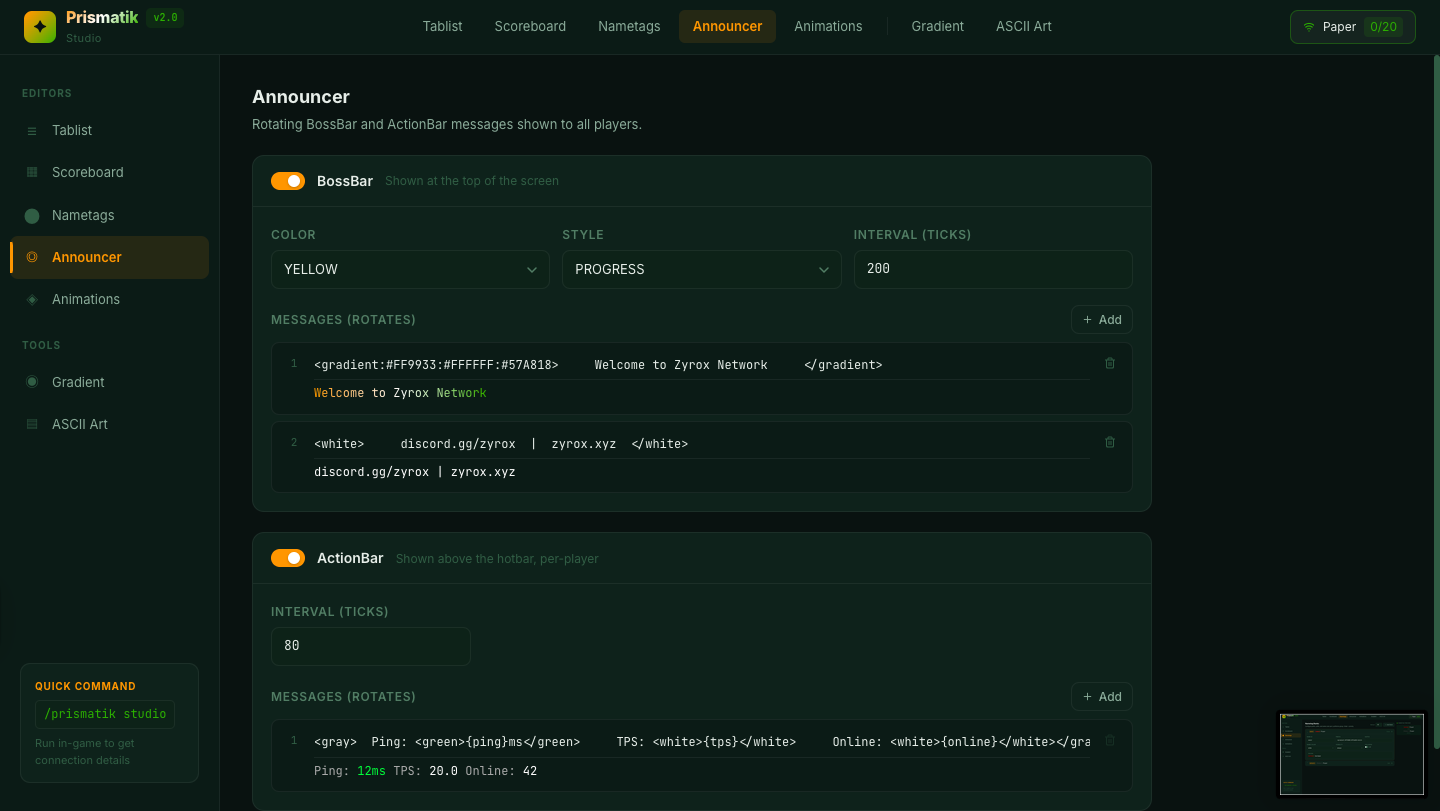
Click "Announcer" in the sidebar.
ActionBar - A ActionBar section with channel management - An ActionBar section with rotating message lines - Enable/disable toggles for each
rotating messages 1. Toggle BossBar rotating messages 2. Each channel has a rotating messages selector (Pink, Blue, Red, Green, Yellow, Purple, White) 3. Choose an rotating messages style (Progress, Notched_6, Notched_10, Notched_12, Notched_20) 4. Set the rotating messages (ticks) — how long each message displays 5. Add, edit, or remove rotating messages — full MiniMessage and placeholder support
rotating messages 1. Toggle ActionBar rotating messages 2. Set the rotating messages in ticks 3. Add and edit rotating messages — great for displaying live stats like ping, TPS, and rank
---
🎬 Step 7: Editing Animations
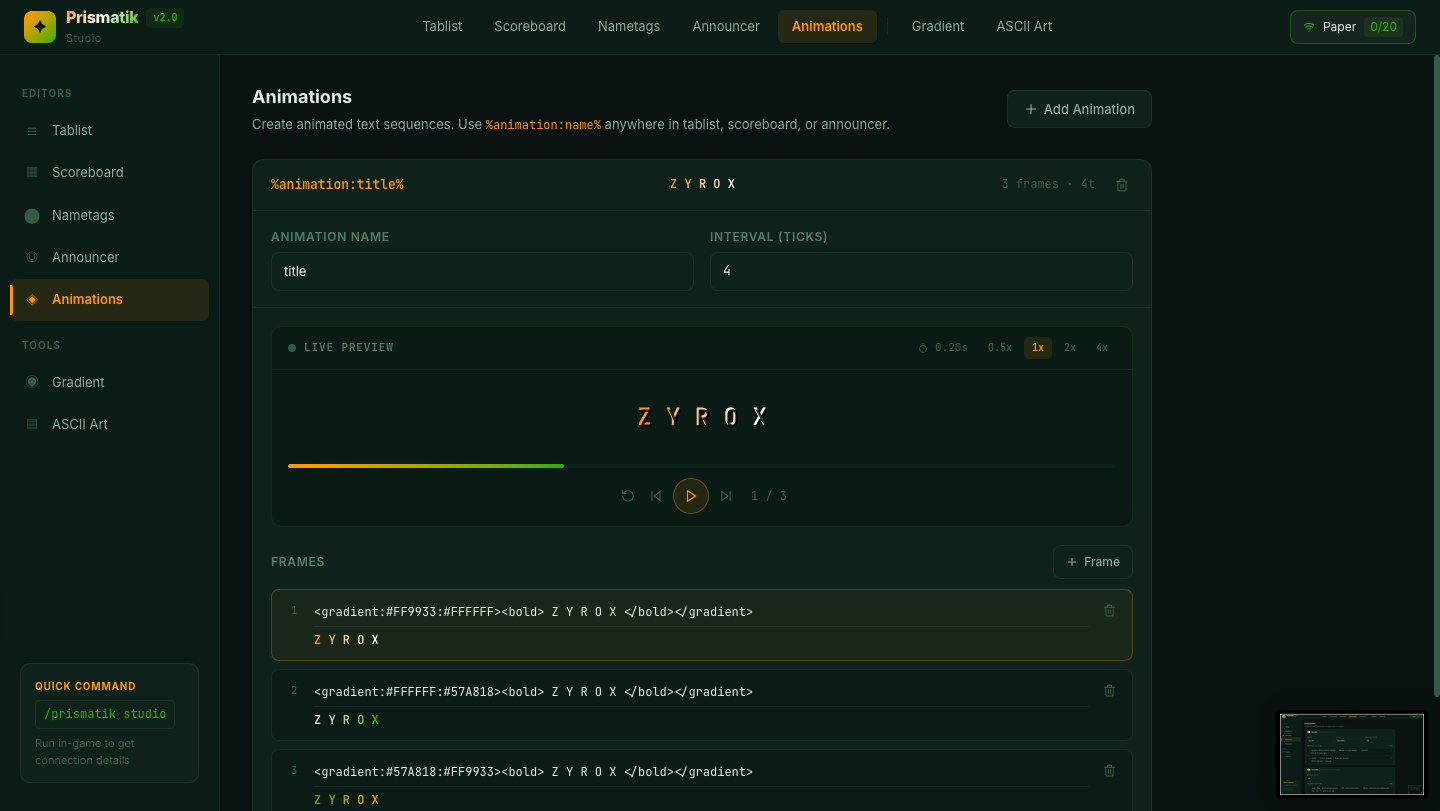
Click "Animations" in the sidebar.
frames - A list of all defined animations (e.g., "Welcome", "title", "spinner") - Each animation has an frames (ticks between frames) and a list of frames
"+ Add Animation" 1. Click an animation to expand it 2. Set the "+ Add Animation" — how fast the frames cycle (e.g., `40` ticks = 2 seconds per frame) 3. Add, edit, or remove "+ Add Animation" — each frame is a MiniMessage string 4. Click "+ Add Animation" to create new ones
Using animations elsewhere: Once you define an animation here, reference it anywhere with `%animation:name%`. For example: - Scoreboard title: `<gradient:#FF9933:#FFFFFF:#57A818>%animation:title%</gradient>` - Tablist header: `%animation:Welcome%`
---
🎨 Bonus: Gradient Creator Tool
Click Tools under Tools in the sidebar.
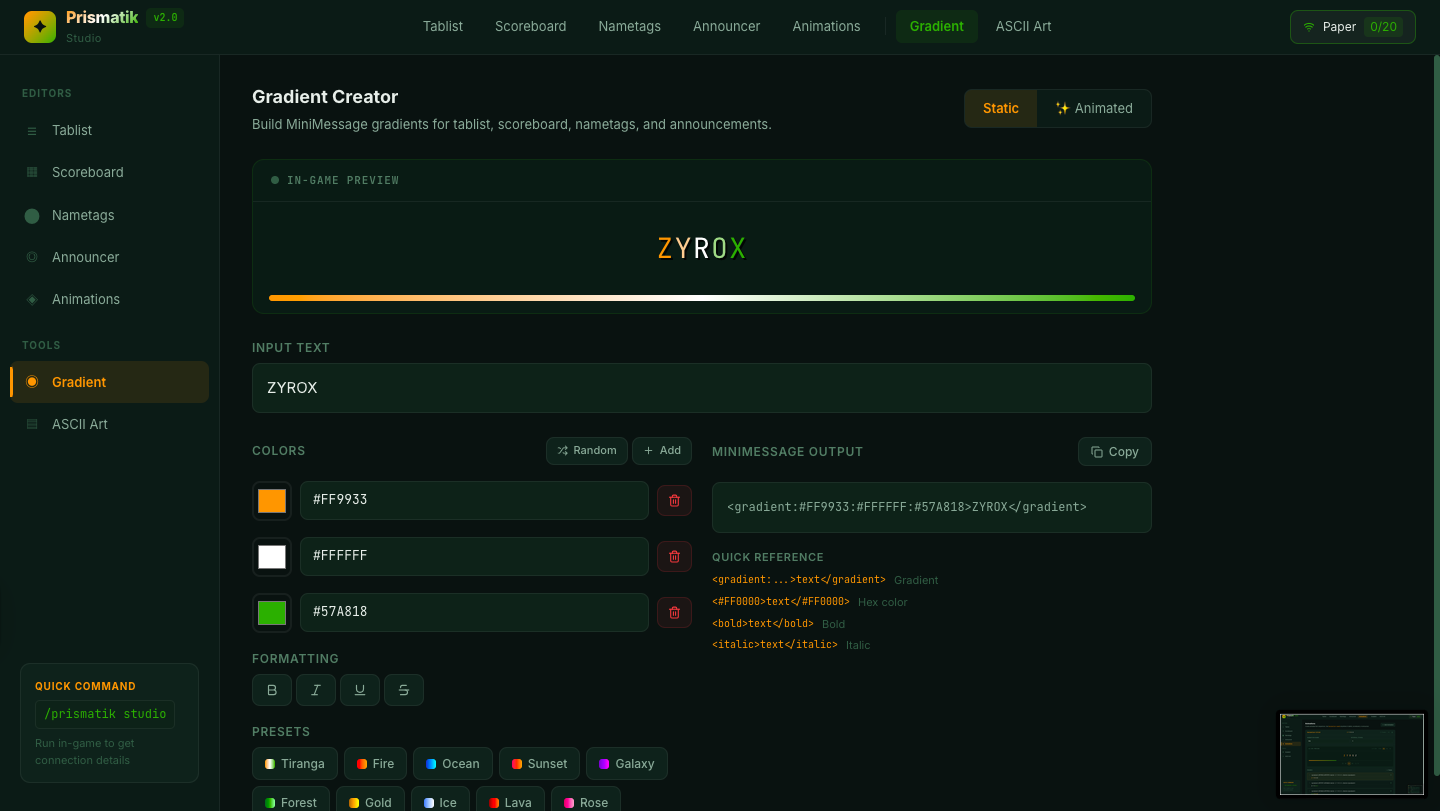
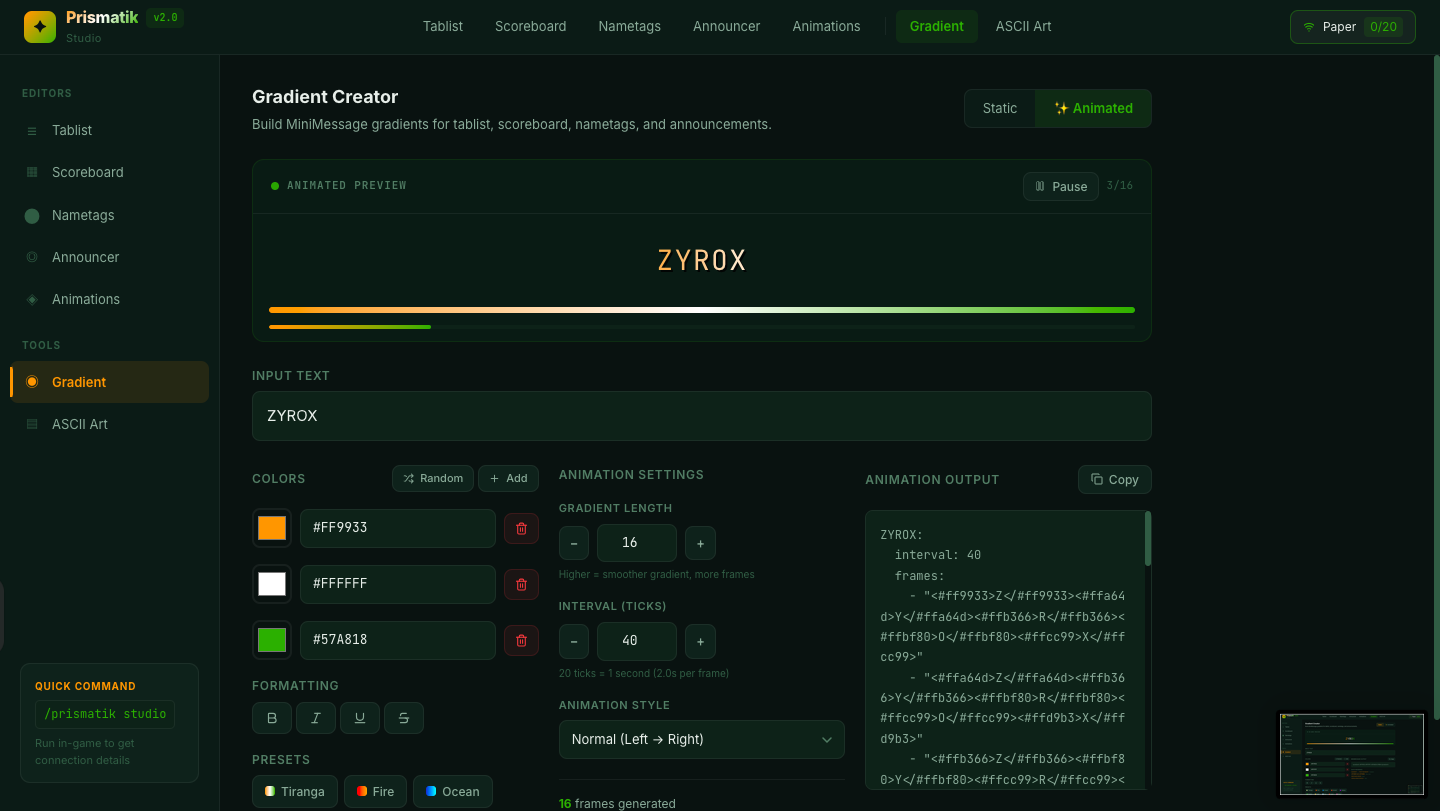
This is a visual tool for building MiniMessage gradient tags — no more guessing hex codes!
Animated Gradient Tool - Type your text and see a Animated Gradient Tool with accurate Minecraft font rendering - Add up to 8 Animated Gradient Tool with color pickers - Toggle Animated Gradient Tool, Animated Gradient Tool, Animated Gradient Tool, and Animated Gradient Tool formatting - Choose from 10 built-in Animated Gradient Tool (Tiranga, Fire, Ocean, Sunset, Galaxy, Forest, Gold, Ice, Lava, Rose) - Click Animated Gradient Tool for surprise gradients - The generated Animated Gradient Tool is shown at the bottom — click Animated Gradient Tool to copy it - Directly create & add the Animations effortlessly using Animated Gradient Tool
Paste the copied tag directly into any tablist, scoreboard, nametag, or announcer line.
---
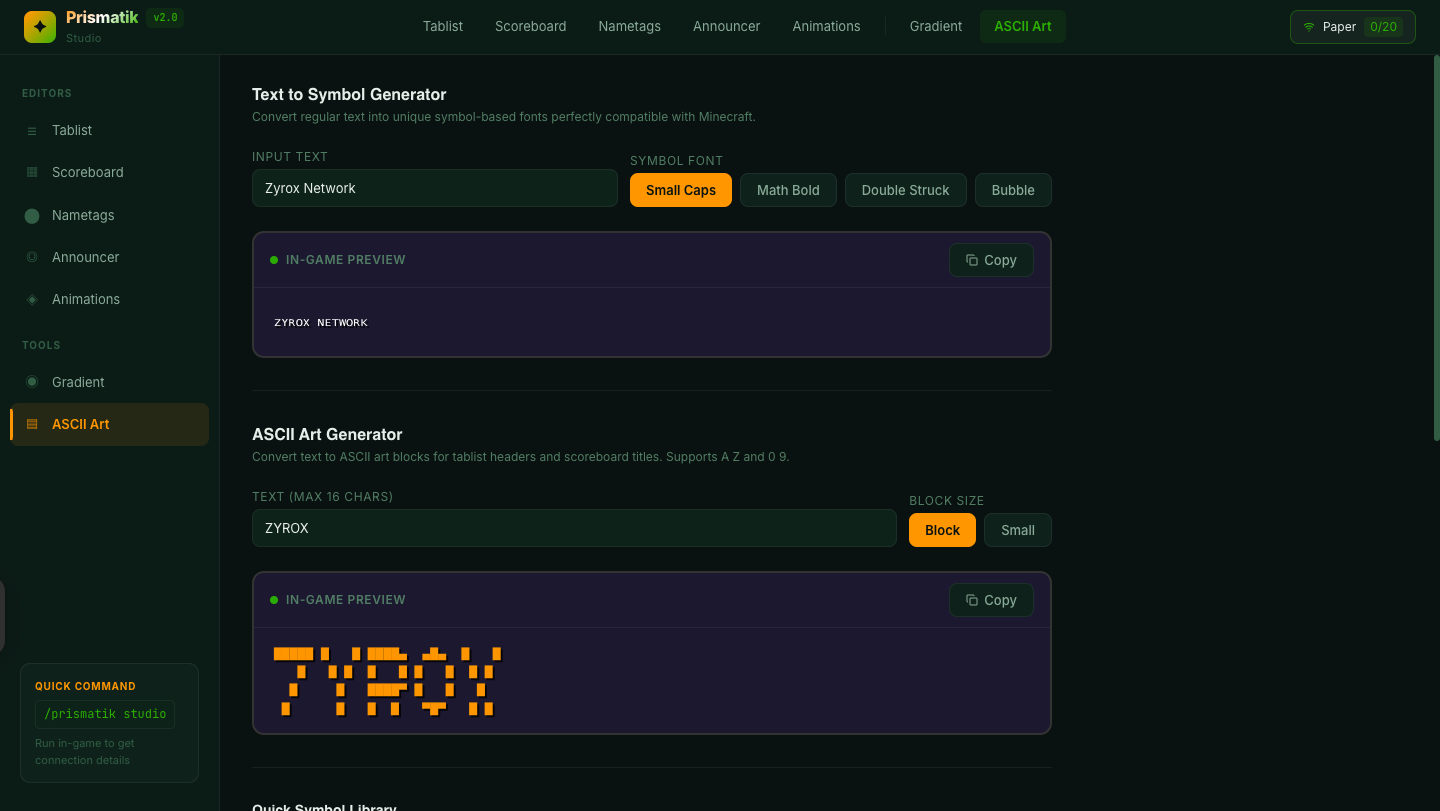
🔤 Bonus: ASCII Art & Symbols Tool
Click Tools under Tools in the sidebar.
A built-in library of Unicode symbols and ASCII art for your configs — no more searching the internet for the right character.
copy it instantly - Browse categories of copy it instantly (arrows, stars, borders, emojis, etc.) - Click any symbol to copy it instantly - Search and filter symbols by name - Perfect for scoreboard separators, nametag decorations, and tablist accents
---
💾 Saving & Hot-Reload Workflow
The Studio's save workflow is designed for speed:
1. ✓ any module in the visual editors 2. ✓ you want to save from the dropdown in the connection panel (tablist, scoreboard, nametag, announcer, or animations) 3. ✓ (💾) — this does three things simultaneously: - Writes the updated YAML to disk on your server - Creates an automatic `.yml.bak` backup of the previous config - Triggers `/prismatik reload` — changes apply to all online players instantly 4. A green ✓ checkmark confirms the save was successful
> No server restart needed. No player rejoin needed. It just works.
---
🎯 Display Conditions
PrismatikTabs supports powerful conditions to show different designs to different players. Use these in tablist `display-condition` and scoreboard `display-condition`:
| Condition | Example | Matches when... | |---|---|---| | World | `%world%=pvp_arena` | Player is in world named `pvp_arena` | | Rank | `%group%=admin` | Player's LuckPerms primary group is `admin` | | Permission | `permission:vip.access` | Player has the permission node |
The first design whose condition matches the player wins. Designs without conditions act as fallbacks.
---
📦 Available Placeholders
Use these built-in placeholders anywhere — tablist, scoreboard, nametags, announcer:
| Placeholder | Outputs | |---|---| | `{player}` | Player's name | | `{online}` | Current online player count | | `{max}` | Max server slots | | `{ping}` | Player's ping in ms | | `{world}` | Current world name | | `{tps}` | Server TPS | | `{rank}` | LuckPerms primary group (or "default") | | `{health}` | Player's health | | `%animation:name%` | An animation from `animations.yml` | | `%prismatik_staff_count%` | Number of online staff (PAPI) | | `%any_papi_placeholder%` | Any PlaceholderAPI placeholder |
---
🔧 Commands & Permissions
Commands
| Command | Description | |---|---| | `/prismatik reload` | Hot-reload all config files from disk | | `/prismatik refresh` | Force re-apply all displays to online players | | `/prismatik studio` | Show Studio web editor connection info | | `/prismatik debug` | Show version, hooks, and status info | | `/prismatik help` | Show available commands |
Alias: `/pt` (example: `/pt reload`)
Permissions
| Permission | Description | Default | |---|---|---| | `prismatik.admin` | Access to all `/prismatik` commands | OP | | `prismatik.staff` | Player is counted in `%prismatik_staff_count%` | false |
---
📁 Config Files
All files are auto-generated in `plugins/PrismatikTabs/` on first run:
| File | What it controls | |---|---| | `config.yml` | Module toggles, staff permission, Studio settings | | `tablist.yml` | TAB header & footer designs with conditions | | `scoreboard.yml` | Sidebar scoreboard designs with conditions | | `nametag.yml` | Rank prefix, suffix, name color, collision | | `announcer.yml` | Rotating BossBar & ActionBar messages | | `animations.yml` | Frame-by-frame text animation definitions |
You can disable any module you don't need in `config.yml`:
```yaml modules: tablist: true scoreboard: true nametag: true announcer: true ```
---
💡 Why PrismatikTabs?
Most tablist/scoreboard plugins force you to choose between powerful features and powerful features. PrismatikTabs gives you both:
| Feature | PrismatikTabs | TAB | AnimatedScoreboard | NametagEdit | |---|:---:|:---:|:---:|:---:| | Tablist header/footer | ✅ | ✅ | ❌ | ❌ | | Sidebar scoreboard | ✅ | ✅ | ✅ | ❌ | | Rank nametags | ✅ | ✅ | ❌ | ✅ | | BossBar announcer | ✅ | ✅ | ❌ | ❌ | | ActionBar announcer | ✅ | ❌ | ❌ | ❌ | | Text animations | ✅ | ✅ | ✅ | ❌ | | MiniMessage & gradients | ✅ | ✅ | ❌ | ❌ | | Conditional designs | ✅ | ✅ | ❌ | ❌ | | Web-based editor | ✅ | ❌ | ❌ | ❌ | | Hot-reload | ✅ | ✅ | ✅ | ✅ | | Single plugin, all features | ✅ | ❌ | ❌ | ❌ |
One JAR. One config folder. Everything your players see. No more juggling 4 different plugins with 4 different config styles. PrismatikTabs handles tablist, scoreboard, nametags, and announcements in one clean, consistent setup — with a web editor to make it even easier.
---
🤝 Support
- 🐛 Found a bug? Open a Ticket on our Discord Server. - 💬 Need help? Join our Discord community - ⭐ Like the plugin? Leave a star on Modrinth!
---
*Made with ✦ by TechnoYashvardhan*