

v.1.0.0+mod
release

Show Biome In Name
Shows the current biome a player is in next to its name
 1,33k
1,33k
Show Biome In Name
Show Biome In Name (SBIN)
<picture> <source media="(prefers-color-scheme: light)" srcset="https://raw.githubusercontent.com/Mqxx/GitHub-Markdown/main/blockquotes/badge/light-theme/tip.svg"> <img alt="Tip" src="https://raw.githubusercontent.com/Mqxx/GitHub-Markdown/main/blockquotes/badge/dark-theme/tip.svg"> </picture><br>
Questions or issues? -> discord server | or create an issue on github
The biome a player is in will be displayed next to the players name.
Guides
<picture> <source media="(prefers-color-scheme: light)" srcset="https://raw.githubusercontent.com/Mqxx/GitHub-Markdown/main/blockquotes/badge/light-theme/tip.svg"> <img alt="Tip" src="https://raw.githubusercontent.com/Mqxx/GitHub-Markdown/main/blockquotes/badge/dark-theme/tip.svg"> </picture><br>
If something doesn't work, feel free to join the discord server
How to Install a Datapack in Singleplayer
<details> <summary>At the Creation of a World</summary>
How to install a datapack in singleplayer
1. Open Minecraft Launch the game.
2. "Data Packs" Navigate to "More" and click on "Data Packs".
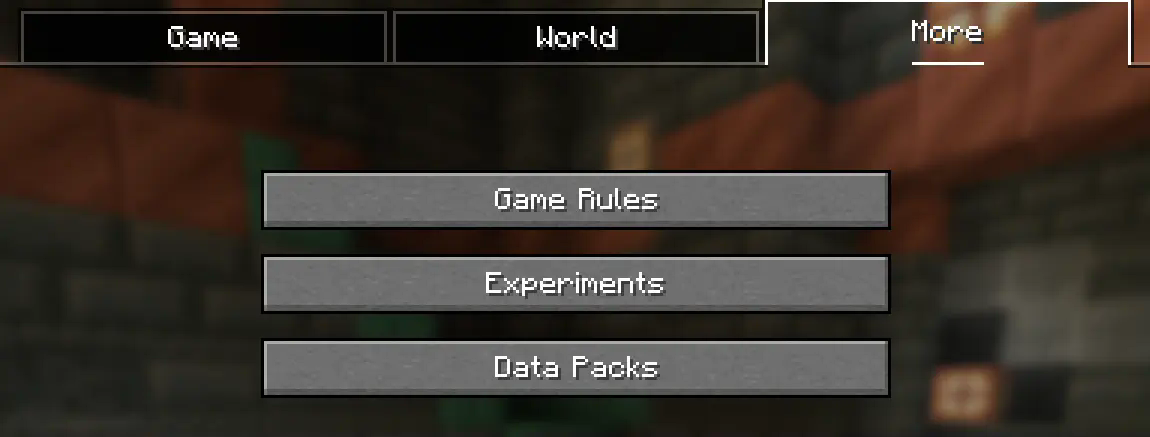
3. Add the Datapack Drag the datapack (a `.zip` file or directory) into the Minecraft window.
- A confirmation screen will appear. Click "Yes".
4. Activate the Datapack Move the datapack to the right-hand side of the screen by clicking the triangle on its icon (visible when hovering over it).
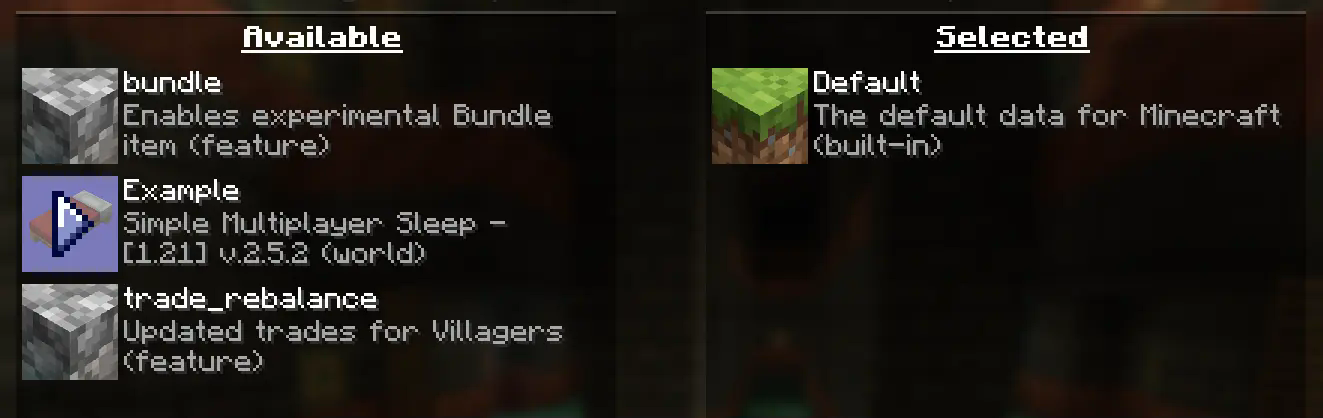
5. "Create New World" - Click "Create New World" at the bottom of the screen. - Continue creating your world and click "Create New World".
---
⚠️ IMPORTANT ⚠️
The datapack only works if cheats are enabled.
You can verify the datapack is active by typing: `/datapack list enabled`
This command should list an entry named `[file/<your datapack file/directory name>]`.
In an Existing World
How to Install a Datapack in an Existing Singleplayer World
1. Open Minecraft Launch the game.
2. "Open World Folder" - Choose the world you want to install the datapack for. - Click "Open World Folder", then "Open World Folder".
3. Add the Datapack - Open the folder named `datapacks`. - Place the datapack into this folder. It should be a `.zip` file or a directory.
4. F3 + T - If you are in the world during installation, type `/reload` in the chat or press F3 + T to reload resources. *(Make sure cheats are enabled.)*
---
⚠️ IMPORTANT ⚠️
The datapack only works if cheats are enabled.
You can verify the datapack is active by typing: `/datapack list enabled`
How to Enable Cheats Permanently After World Creation
If you encounter this issue, here is a step by step guide on how to enable Cheats/Admincommands permanently after you have already created a Minecraft world.
⚠️ Before you begin, you should save and backup your world in case something goes wrong. (I will not take any responsibility for any corrupt worlds. Do this at your own risk!) But don't worry this works without any problems. If you don't want to change this permanently check out Before you begin, you should save and backup your world in case something goes wrong..
1. You need NBTExplorer
> NBTExplorer is an open-source NBT editor for all common sources of NBT data. It's mainly intended for editing Minecraft game data.
2. Open NBTExplorer and open your Minecraft world, where you want to enable Cheats/Admincommands.

3. Navigate to:
- `<Your Minecraft World>` - `level.dat` - `Data` - `allowCommands`

4. Click on "Edit Tag Value"

5. Change the Value from `0` to `1` and click "OK"

6. Now click on "Save All Modified Tags"

That's it. You are done. You can now join your world and check if you have permission to change your `gamemode`, for example.
How to Enable Cheats Temporarily After World Creation
Enabling Cheats Temporarily After World Creation
If you encounter this issue, here is a step-by-step guide on how to enable Cheats/Admin commands temporarily after you have already created a Minecraft world.
1. Join Your World Open your single-player world and press "Escape".
2. "Open to LAN" Click on "Open to LAN".
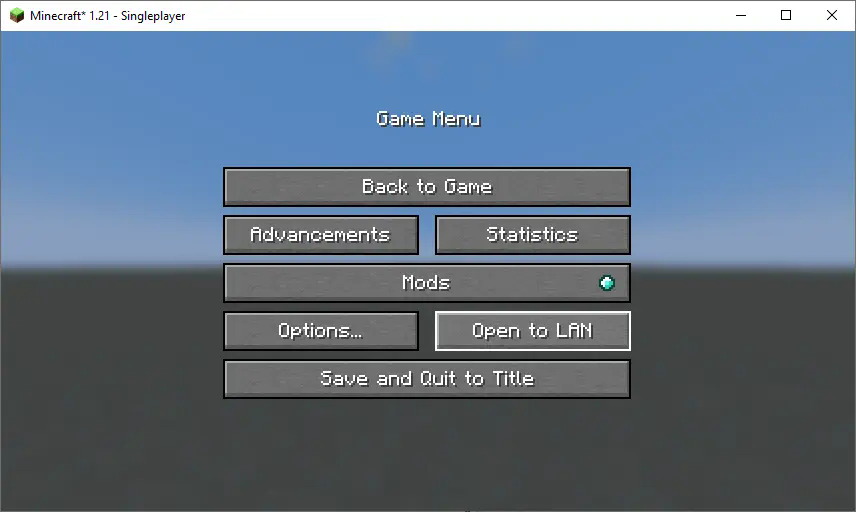
3. ON Set ON to ON.
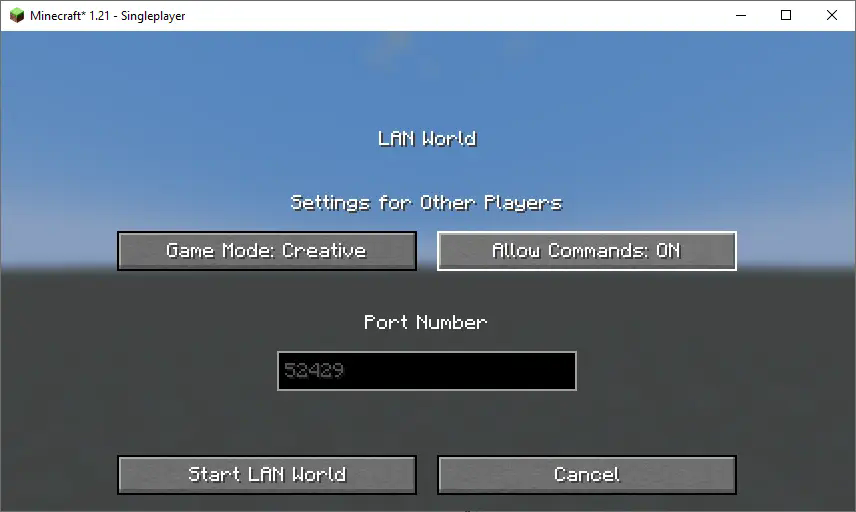
4. "Start LAN World" Click "Start LAN World" to apply the changes.
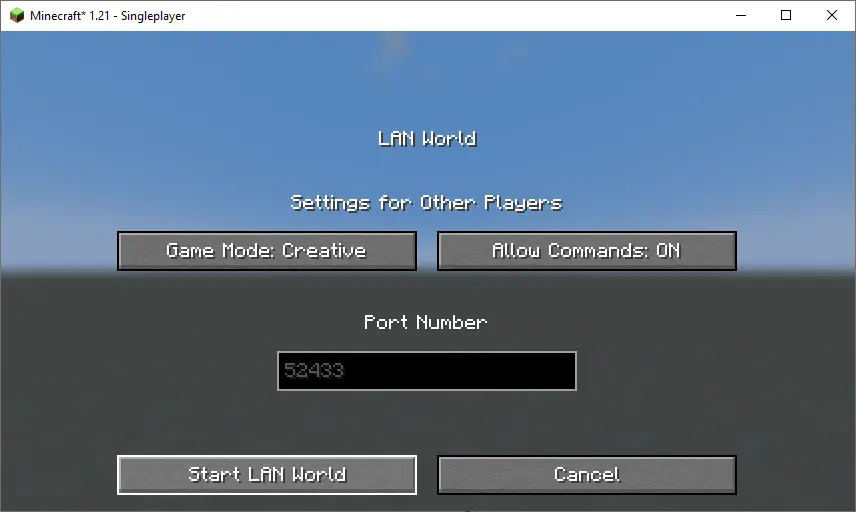
Now, you should be able to use commands like changing your gamemode. Keep in mind that this is only temporary and will need to be done every time you join the world.
</details>
How to Install a Datapack in Multiplayer
How to Install a Datapack in Multiplayer
1. Open Your Server Folder Navigate to your server folder, then open the folder for the world you wish to install the datapack in (default: `world`).
2. Add the Datapack - The datapack should be a `.zip` file. - Place the datapack into a folder named `datapacks` inside the world folder.
3. Reload the Server - Type `/reload` from the console or as a level 3 operator if the server was running during the installation.
How to Uninstall a Datapack
How to Uninstall a Datapack from Your Singleplayer World or Server
1. Run the Uninstall Command For my datapacks, run the command: `/function datapack_name:uninstall`
2. Delete the Datapack - Delete the datapack from the folder you placed it in. - Alternatively, you can run: `/datapack disable [file/your data pack file/directory name]`
3. Reload the World or Server After deleting or disabling the datapack, run: `/reload`
How to Install a Mod on a Minecraft Server
Step-by-Step Guide to Installing a Mod on a Minecraft Server
1. Important: - Make sure to download the Important: of the Mod that matches your server's Minecraft version. - Important: The mod file should be a `.jar` file.
2. Ensure No Datapacks or Other Mods Conflict - Do not have both a datapack and a mod installed at the same time, as they may conflict. - Only install one or the other, depending on your server's setup.
3. Locate the Mods Folder - Open your server's root directory. - Inside this directory, find the folder named `mods`. - If the `mods` folder doesn't exist, create one.
4. Install the Mod - Paste the downloaded `.jar` file for the Mod into the `mods` folder.
5. Restart the Server - After adding the Mod to the `mods` folder, restart your Minecraft server for the mod to be activated.
6. Verify Mod Installation - Once the server has restarted, join the server and check if the Mod is working. - You can use `/mods` or a similar command (depending on the mod) to see if the Mod has been successfully loaded.
Additional Tips
- Ensure Mod Compatibility: Always create a backup before installing the Mod to avoid data loss in case something goes wrong. - Ensure Mod Compatibility: Check that the Mod is compatible with your Minecraft server version and any other mods you have installed.
Config
Color table
1 - aqua
2 - black
3 - blue
4 - dark_aqua
5 - dark_blue
6 - dark_gray
7 - dark_green
8 - dark_purple
9 - dark_red
10 - gold
11 - gray
12 - green
13 - light_purple
14 - red
15 - white
16 - yellow
Biome list
ocean
deep_ocean
warm_ocean
lukewarm_ocean
deep_lukewarm_ocean
cold_ocean
deep_cold_ocean
frozen_ocean
deep_frozen_ocean
mushroom_fields
jagged_peaks
frozen_peaks
stony_peaks
meadow
cherry_grove
grove
snowy_slopes
windswept_hills
windswept_gravelly_hills
windswept_forest
forest
flower_forest
taiga
old_growth_pine_taiga
old_growth_spruce_taiga
snowy_taiga
birch_forest
old_growth_birch_forest
dark_forest
jungle
sparse_jungle
bamboo_jungle
river
frozen_river
swamp
mangrove_swamp
beach
snowy_beach
stony_shore
plains
sunflower_plains
snowy_plains
ice_spikes
desert
savanna
savanna_plateau
windswept_savanna
badlands
wooded_badlands
eroded_badlands
deep_dark
dripstone_caves
lush_caves
void
nether_wastes
soul_sand_valley
crimson_forest
warped_forest
basalt_deltas
end
small_end_islands
end_midlands
end_highlands
end_barrens
---
Simple prefix
The simple prefix combines some biomes to a group (e.g. all the oceans to ocean)
``` /scoreboard players set &simple_prefix config.sbin value ``` value = 0 = disabled --> default
value = 1 = enabled
---
Name color
General color of the name
default = gray
``` /scoreboard players set &name_color_sbin color.sbin value ``` value = color --> look at color table
---
Prefix color
Color of the biome prefix
I made default values for all the biomes
``` /scoreboard players set &prefix_color_sdin_biome color.sbin value ``` replace biome with the biome you want to change the color --> look at biome list for correct names
value = color --> look at color table
value = 0 --> disabled / no prefix
Compatible with my Invisible Player Name) datapack/mod
Coming soon
Compatibility with my AFK Announcer datapack/mod
Versions
v.1.0.0
release